TABLE OF CONTENTS
Overview
This article will review CRM user instructions to Setup and Authentication for the O365 2-way email sync.
User Setup Instructions
Note: If your company has successfully set up the Office365 2-way email integration host and triggered you to connect, you will see a 'call-to-action' (shown below) on your dashboard prompted you to authorize your Office365 account to start the 2-way email syncing.
"Opt-Out" button will simply close out the banner.
If you do not have this banner, but your host is setup, proceed to step 1 to manually authenticate.

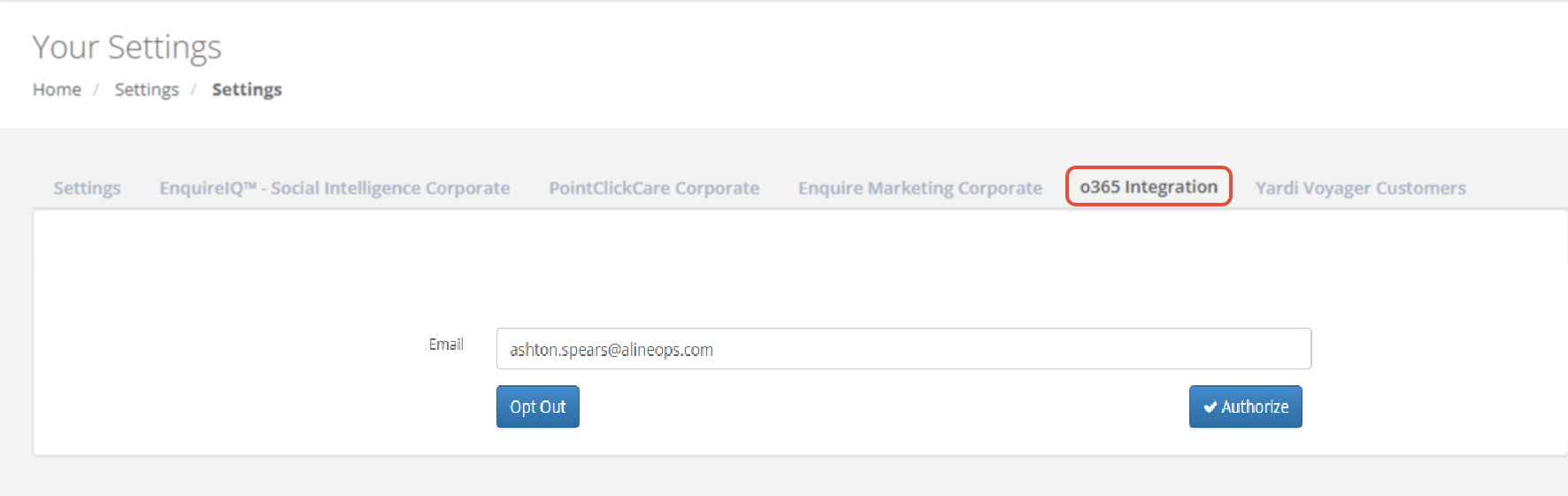
Step 1: After your IT team has setup the connection to your company, each user needs to register their email. In the left-hand menu below your name, click settings (https://account.enquiresolutions.com/settings), choose the tab “O365 Integration”, and click 'Authorize Enquire' button.

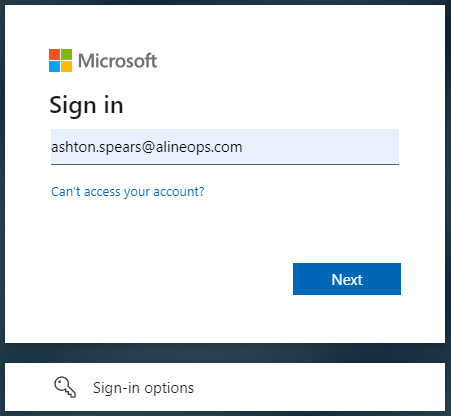
Step 2: You will be redirected to the Office365 sign in page where you will follow the steps of signing into your Office365 account.
Step 3: Once you complete your Office365 sign in, you will be redirected back to the CRM and should see the page below and your sync is active.

If you see an error response, please reach out to your CRM Admin to check on your sync status and host status.
Usage
Emails will only sync if the below two conditions exist:
- The emails contains a matching email on a CRM profile
- You are the assigned user on that profile.
If both conditions are met then outbound and inbound emails from your account will sync to the lead profile as "Email Out" and "Email In" activities and the message body will be included in the notes on the profile.
FAQ's
When will the sync be active?
- Once you authenticate your user successfully, your sync is active.
What emails will sync to the CRM?
- Email In/Out will only sync if the client email address value exists on a CRM Individual profile, AND you are the assigned user on the profile. If both conditions are met then the email will create an Email In/Out activity and Note on the individual profile.
What do I do if I think the sync is not working?
- Verify you are the assigned user on the profile and the client email is an exact match. If these are both true then reach out to your CRM Admin user and they can validate your user token.
- NOTE: If the company client secret value on the host expires, each user's token will become invalid. Your admin user will need to update the value on the host. Once the new company client secret value is updated, each user should be prompted to re-authenticate to re-establish a valid token.
If the sync and stopped and then restarted will missed emails then sync?
- No, once your token is re-established, only new emails going forward will sync.
Was this article helpful?
That’s Great!
Thank you for your feedback
Sorry! We couldn't be helpful
Thank you for your feedback
Feedback sent
We appreciate your effort and will try to fix the article