Overview
This article will review CRM user instructions to set up and authenticate for the Microsoft 365 (Office 365) email and calendar integration.
User Setup Instructions
If your company has successfully set up the Office 365 2-way email integration host and triggered you to connect, you will see a yellow banner (shown below) on your dashboard prompting you to authorize your Office 365 account to start the 2-way email syncing. The "Opt-Out" button will simply close out the banner.

If you do not have this banner, but your host is set up, proceed to Step 1 to manually authenticate.

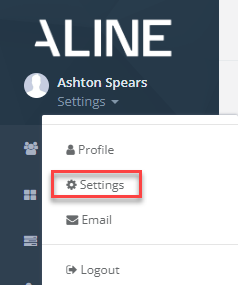
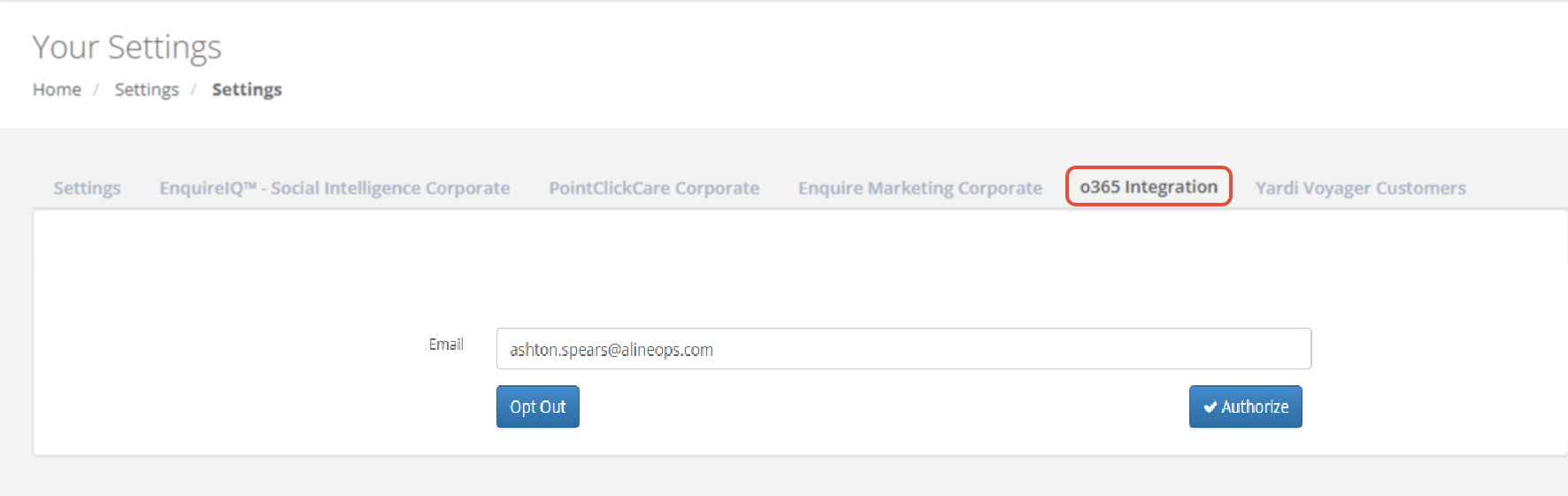
Step 1: After your IT team has set up the connection to your company, each user needs to register their email. In the left-hand menu below your name, click settings (https://account.enquiresolutions.com/settings), choose the tab “O365 Integration”, and click 'Authorize' button.
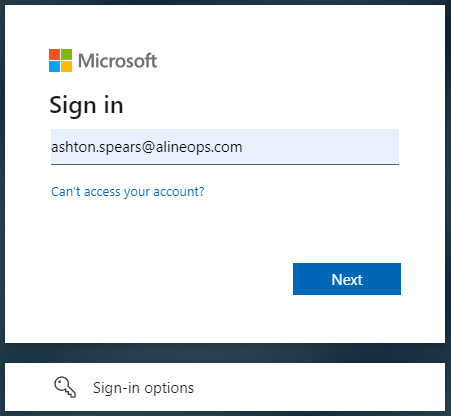
Step 2: You will be redirected to the Office 365 sign in page where you will follow the steps of signing into your Office 365 account.
Step 3: Once you complete your Office 365 sign in, you will be redirected back to the CRM and should see the page below and your sync is active.

If you see an error response, please reach out to your CRM Admin to check on your sync status and host status.
For what happens after setup, see Office 365 Integration: How It Works.
Was this article helpful?
That’s Great!
Thank you for your feedback
Sorry! We couldn't be helpful
Thank you for your feedback
Feedback sent
We appreciate your effort and will try to fix the article