Overview
In this article, we will review how to make a shortcut icon for the Aline CRM.
Making a Shortcut Icon
Step 1: Navigate to your desktop
Step 2: Right click anywhere on your desktop
Step 3: In the menu that pops up navigate to "New" and select "Shortcut"
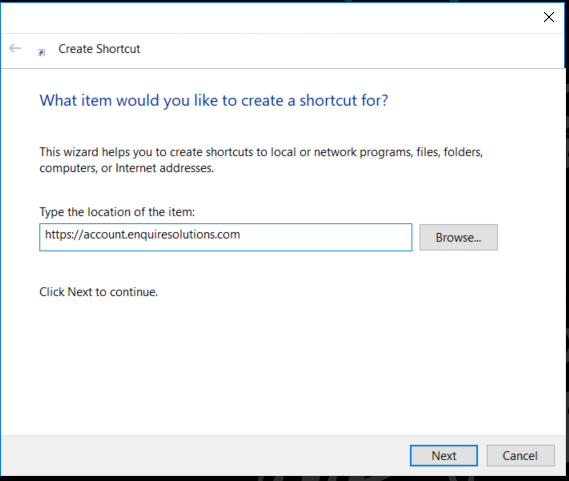
Step 4: A new window will appear. In this window copy and paste the following link into the URL box: https://account.enquiresolutions.com
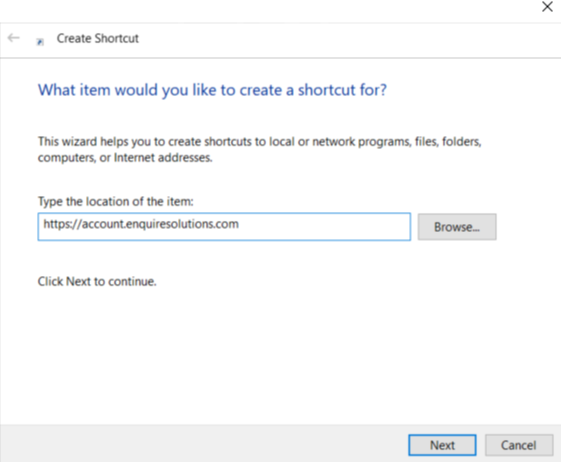
Step 5: Click next
Step 6: Enter the name of the shortcut. For instance "EnquireCRM".
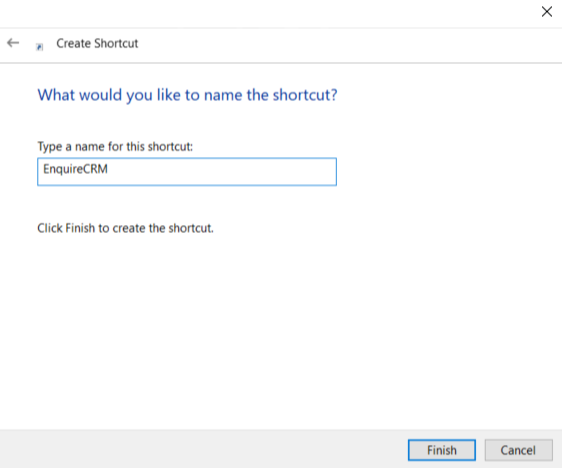
Step 7: Click finish and that's it! Click on the shortcut and your default browser should open with your dashboard loaded.
Note: In order to have your browser log in to your account automatically, make sure you have your username and password saved within your browser's settings.
Was this article helpful?
That’s Great!
Thank you for your feedback
Sorry! We couldn't be helpful
Thank you for your feedback
Feedback sent
We appreciate your effort and will try to fix the article