Overview
In this article, we will review how to add a transaction.
Steps to add a Transaction
Step 1: Navigate to the profile you'd like to add a transaction to and click on the Transactions Tab.

Step 2: Enter in the Date of the Transaction, a brief description, the Transaction Type, the Dollar Amount, and the Status of the transaction (whether it was Billed, Paid, Cancelled, etc.)
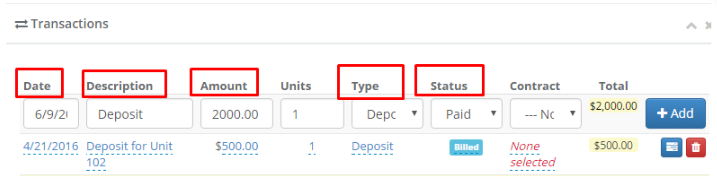
Step 3: If you'd like to add multiple of the same transaction, you can increase the Units field to be how many transactions you'd like this to count as.
Step 4: If you want to tie this transaction to a Housing Contract/Residency Agreement, the current unit will be listed under the Contract field which you can select.
Step 5: Once you're satisfied with the transaction details, click the Add button and the transaction will be added to the profile.
Note: If the transaction you just created is a deposit, you can click the gray button to the right of your transaction and this will auto-generate a Deposit Activity on this profile. 
Was this article helpful?
That’s Great!
Thank you for your feedback
Sorry! We couldn't be helpful
Thank you for your feedback
Feedback sent
We appreciate your effort and will try to fix the article