Overview
In this article, we'll detail the steps necessary for administrative users to reset passwords and unlock user accounts in the Aline CMT application.
Please Note: only administrative users with the appropriate permissions may reset passwords and unlock locked user accounts.
Steps to Reset a User Password
If a user requires a manual password reset, Aline Suite administrative users can access the CMT application to manually reset a user's password. The process is laid out in step by step directions:
Step 1: After logging into the Aline Suite, select Aline Suite Configuration (CMT) from the Applications Menu.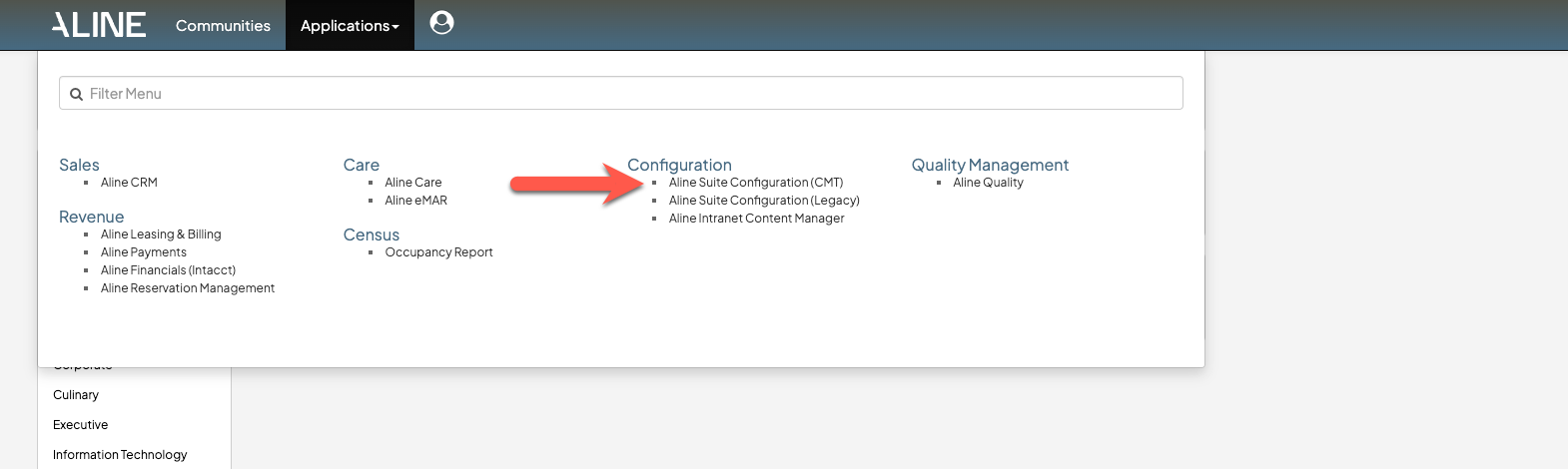
Step 2: To manage users within the CMT application, select the Go To Menu and then Security Configuration.

Step 3: Next, to manage users, select Manage Users.
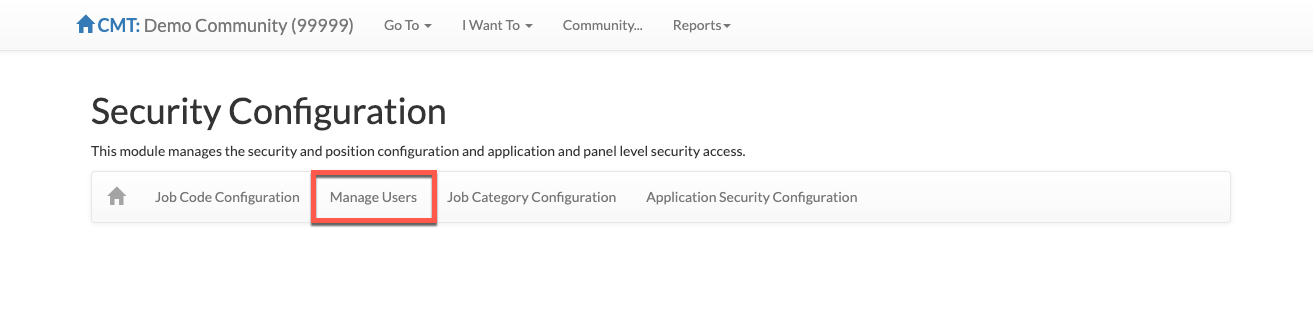
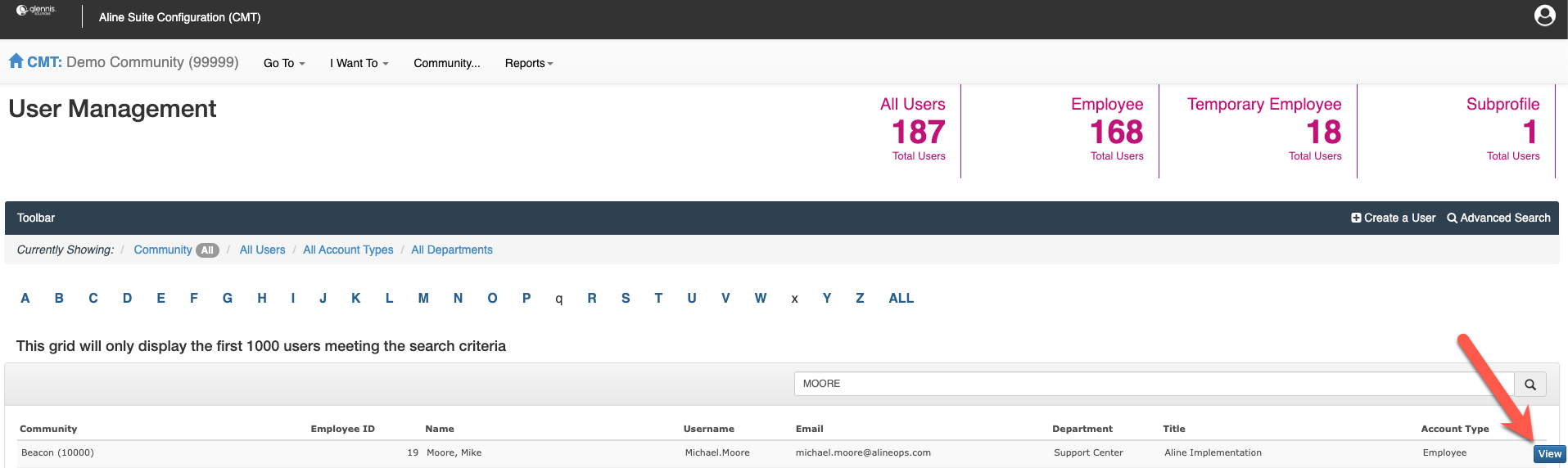
Step 4: Search for the desired user profile.
Step 5: After finding the desired user profile, select View to view their profile details.
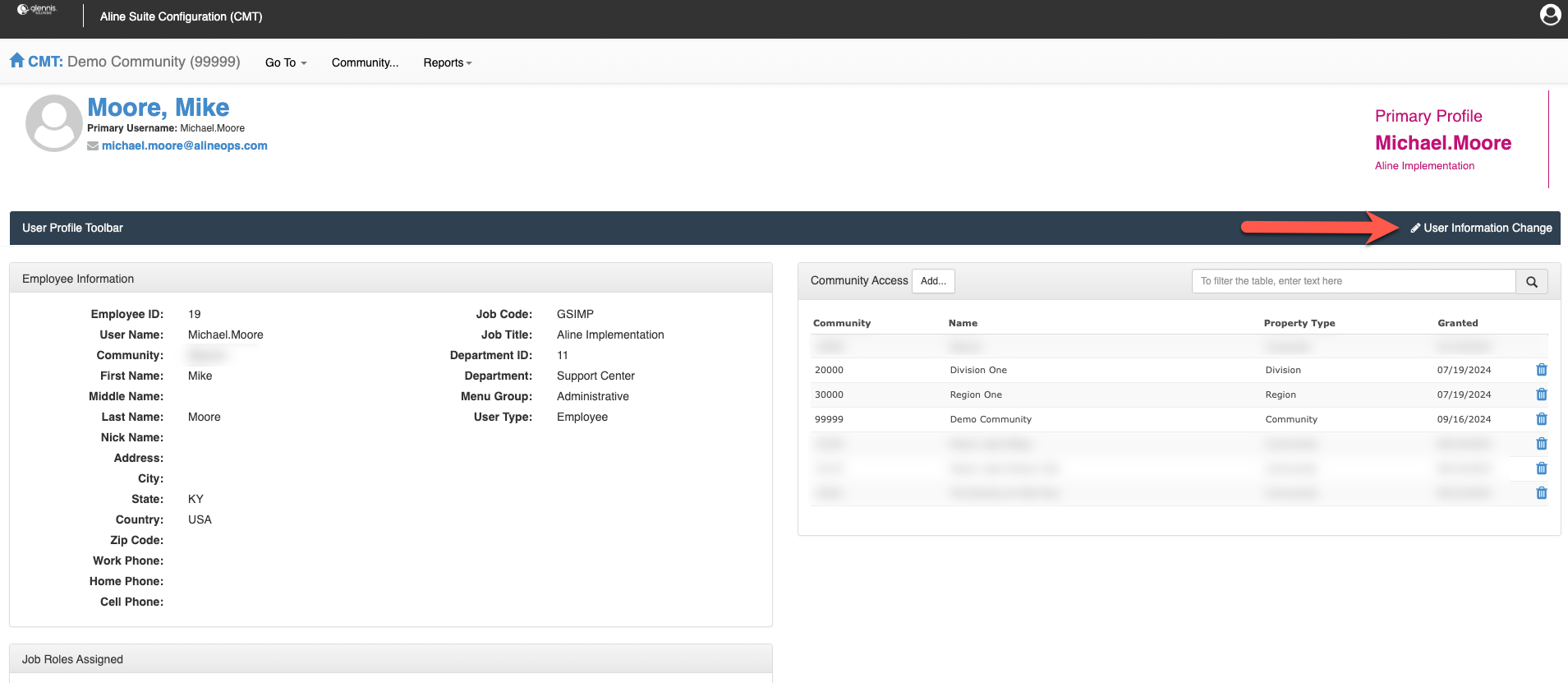
Step 6: Select User Information Change.
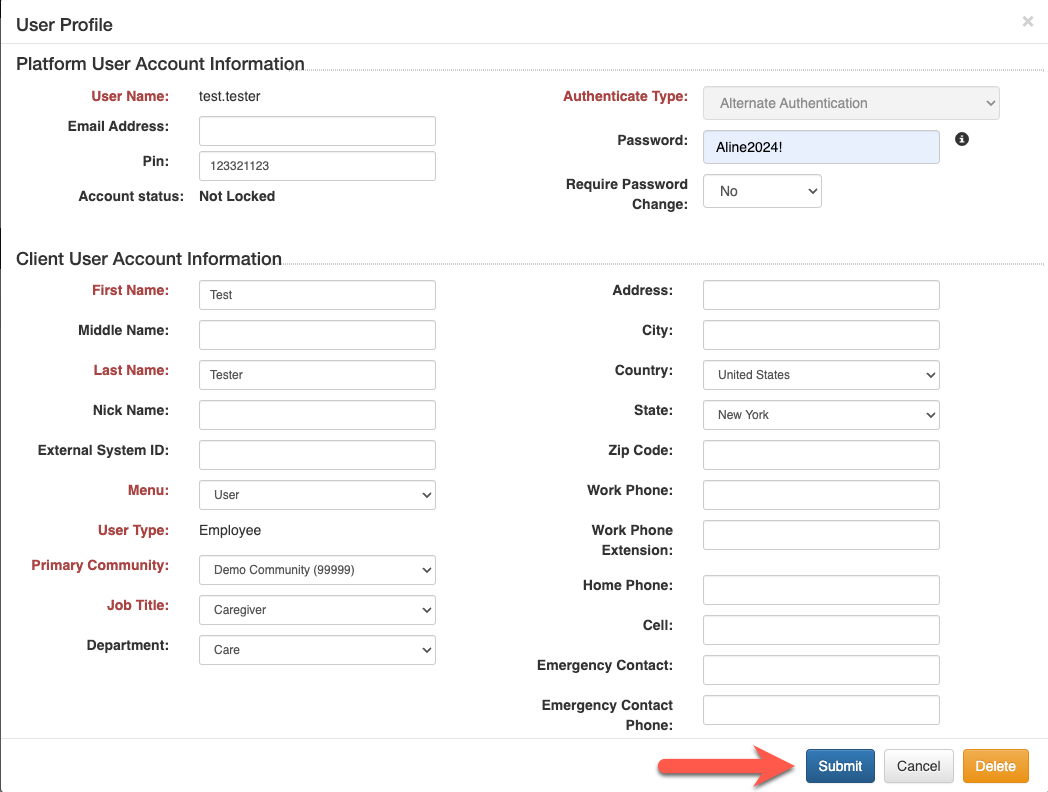
Step 7: In the Change User Password field, enter the new password. To force the user to reset their password upon their first login, select Yes in the Require Password Change field.

Step 8: Select Submit to save the changes.
Unlocking a User Account
If a user has been locked out of their account after successive failed login attempts, administrative users must unlock their account. The process is laid out in step by step directions:
Step 1: After logging into the Aline Suite, select Aline Suite Configuration (CMT) from the Applications Menu.
Step 2: To manage users within the CMT application, select the Go To Menu and then Security Configuration.
Step 3: Next, to manage users, select Manage Users.
Step 4: Search for the desired user profile.
Step 5: After finding the desired user profile, select View to view their profile details.
Step 6: Select User Information Change.
Step 7: Enter the new password in the Change Password field if necessary. To force the user to reset their password upon their first login, select Yes in the Require Password Change field.
Step 8: In the Account Locked field, select No.
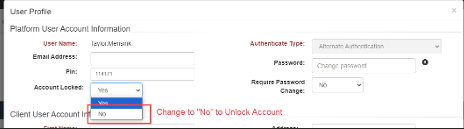
Step 9: Select Submit to save the changes. The user's account has now been unlocked!
Was this article helpful?
That’s Great!
Thank you for your feedback
Sorry! We couldn't be helpful
Thank you for your feedback
Feedback sent
We appreciate your effort and will try to fix the article