Testing Emails in Enquire MAP
When an email is sent from Enquire MAP to a contact, Enquire MAP embeds two versions:
HTML version: For those recipients who have opted to receive HTML format by selecting that choice in their email client, an email is generated using the HTML version.
Plain text version: For those recipients who have opted to receive plain text by selecting that choice in their email clients, an email is generated using plain text version.
Note: Enquire MAP can (optionally) send the two versions as separate emails to make it easier for the community to review the results. These never show up as 2 separate emails, they show up as a single email based on the correct version being rendered.
Steps to Test
Step 1: Navigate to the email or email template that will be tested. Email templates can be accessed by navigating to Assets from the left hand menu and then Email Template Library from the sub menu.

Step 2: Use the Pencil edit icon next to the desired email to be sent.
Step 3: On the edit screen of the email, click the Test Email button in the upper right corner.

Step 4: In the popup window enter the email address that will be used for testing and select the email versions for testing.
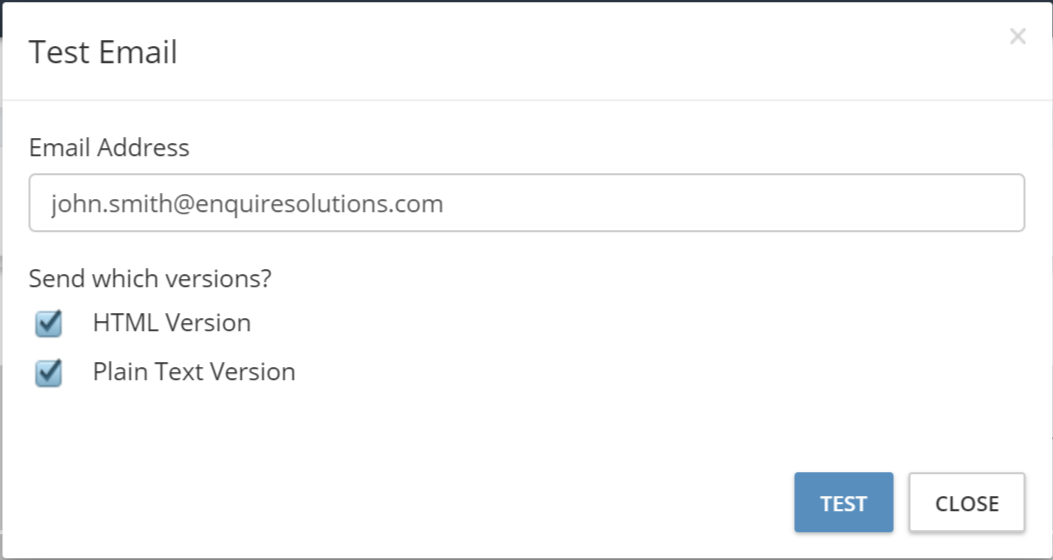
Step 5: Test emails will be sent to the specified email address(s).
Was this article helpful?
That’s Great!
Thank you for your feedback
Sorry! We couldn't be helpful
Thank you for your feedback
Feedback sent
We appreciate your effort and will try to fix the article