How to Change the Text on the Confirmation Page in Enquire MAP
After a form is filled out, the user can configure what is presented to the visitor who completed the form.
- Navigate to Assets > Web Forms. Open the form editor. For exported forms, find the specific form, click the pencil or edit icon. For forms in landing pages, open the landing page editor then hover over the form to click the pencil or edit icon that appears on the form block.
- Click on the Confirmation tab where there are three options:
- Redirecting the visitor to some other page on the site
- Build a custom Thank You message (Enquire MAP constructs a page)
- Replace the form with an In-Place message
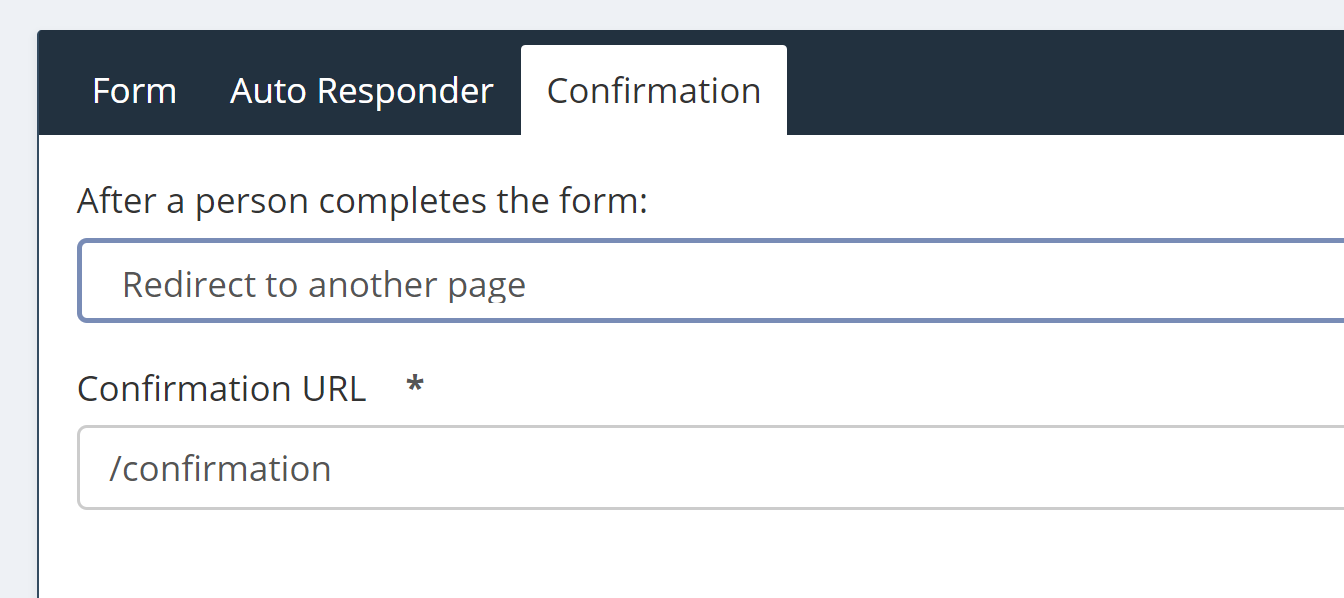
Redirect to another page
Place the URL in the text box, the page will redirect on submit:
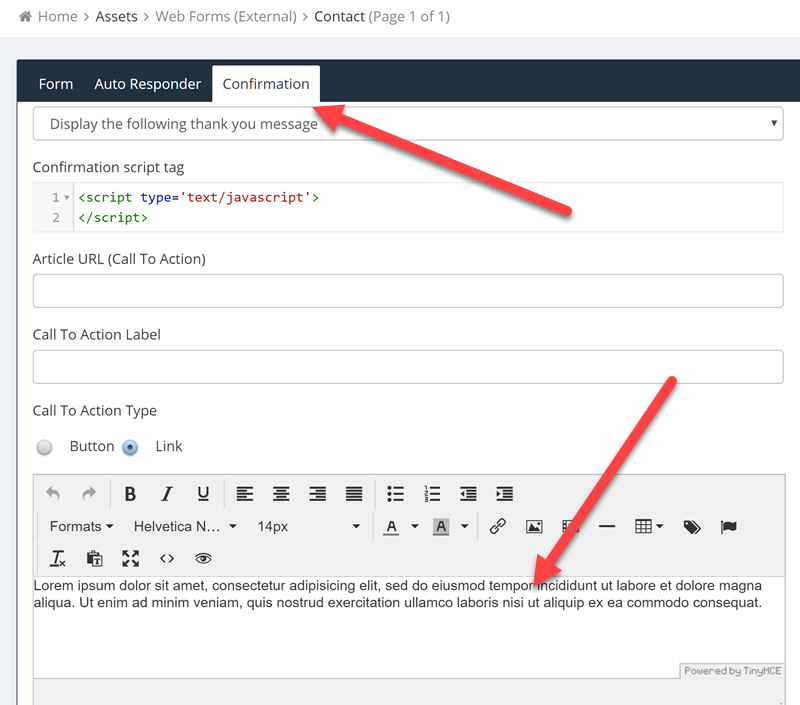
Display the following Thank You message
This option creates a very basic landing page providing the User minimal control over the format but the page is quick to build.
Display the following message in place
This option replaces the form with the message in the editor. Please note: In-Place confirmations are not available to upload files in the form.
Please reach out to the dedicated Enquire Account Manager or Enquire MAP Support team for further assistance.
Was this article helpful?
That’s Great!
Thank you for your feedback
Sorry! We couldn't be helpful
Thank you for your feedback
Feedback sent
We appreciate your effort and will try to fix the article