Overview
In this article, we will review how to update custom field types. Any additional field updates please reach out to your Customer Success Team Member.
Updating Custom Field Types
Step 1: Navigate to the Admin section.
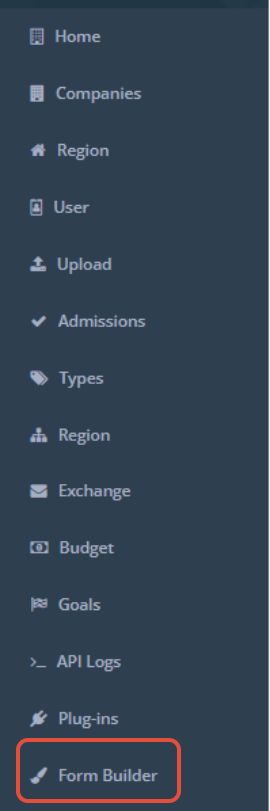
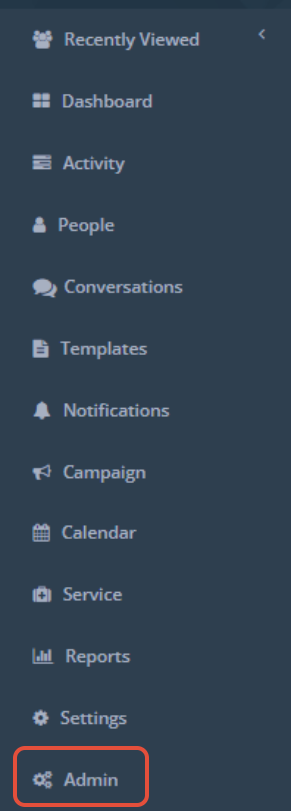 Step 2: Next, you will need to click on Form Builder on the left hand menu
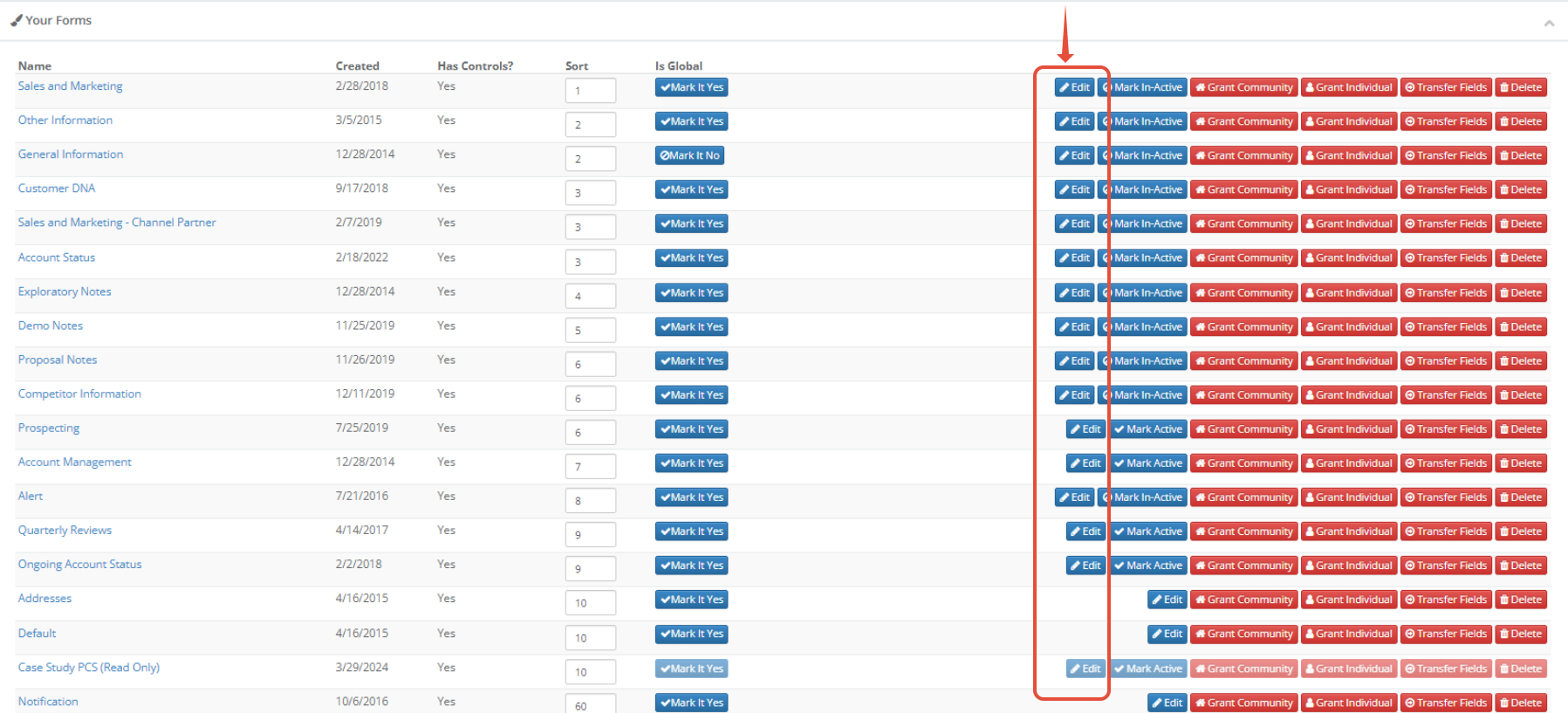
Step 3: Choose a form to edit.
 Step 4: Click on an existing field title and you can edit the form options for that specific title.
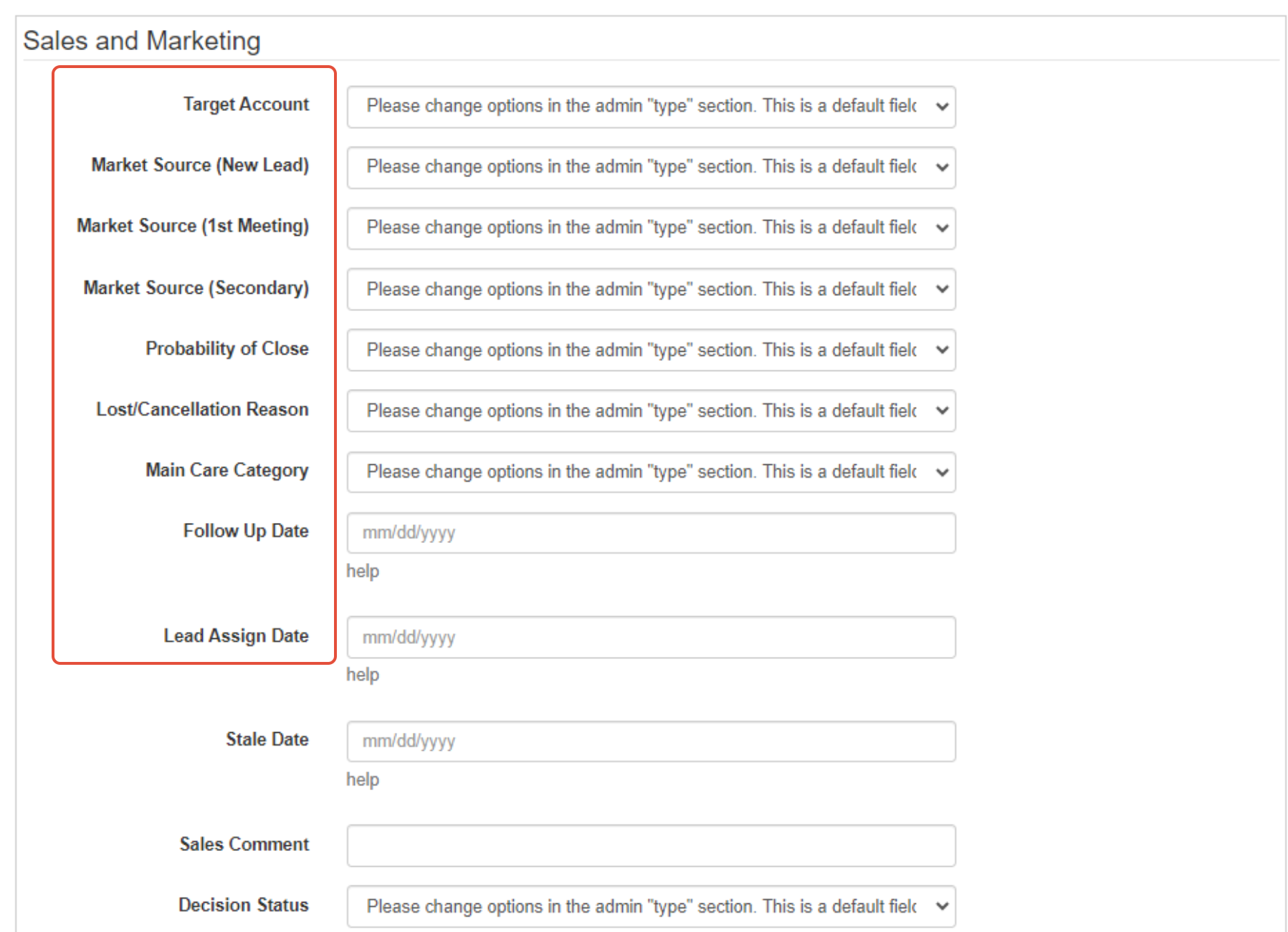
Note: Click on the label text in order to change the name of the existing field types. You can also click and drag new options from the right side of the screen over to the left to make them active. You can also click and drag an option back to the right side menu to remove it from the selected form.
Step 5: Once completed, click the save button to finalize the custom field.
Alert: For more information, check out Form Builder - Customizing the Forms article. Please reach out to your Customer Success Manager for additional assistance. Any deletion of fields can impact custom field data.
Was this article helpful?
That’s Great!
Thank you for your feedback
Sorry! We couldn't be helpful
Thank you for your feedback
Feedback sent
We appreciate your effort and will try to fix the article