Overview
You can use the Advanced Search and compare two saved Lists together to return more specific results. This feature does require saved Lists. If you would like to learn more about creating and saving lists, please review the Saving and Utilizing Lists article.
Running a Complex Search
Step 1: Navigate to the Advanced Search.
Step 2: In the Choose Saved List section, click into the drop down and select the list you would like to search within. This will run that saved List.

Step 3: Click the Advanced Options button.

Step 4: In the second drop down that will appear, select the list you would like to run against the first list you selected.

Step 5:Click Show Results


Saving a Complex Search as a New List
You can save your Complex Searches as a new list by clicking the Save List button after choosing the two lists you would like to compare.

Complex Search Example
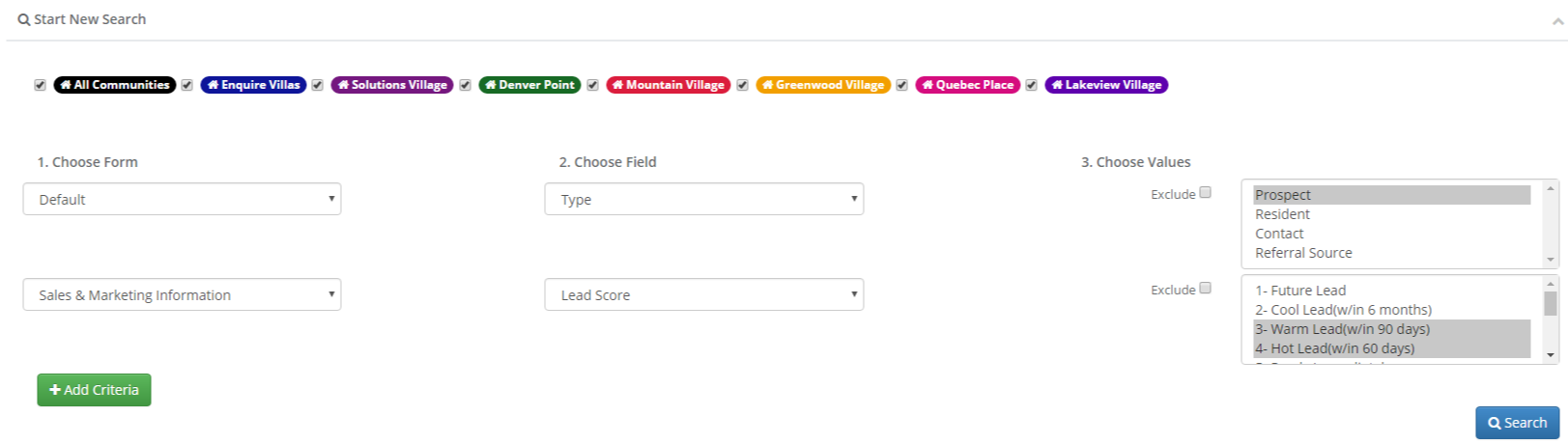
Now let's take what we learned and go through a common Complex Search example. In this example we will be looking for all of our contacts of our Hot & Warm Leads. We will also want to make sure that these contacts have a physical address.
Step 1: We will create a list that looks for all of our Hot & Warm Leads. Take a look at the screenshot below for an example of this list. Also, don't forget to save this list. We will be using it a little bit later.
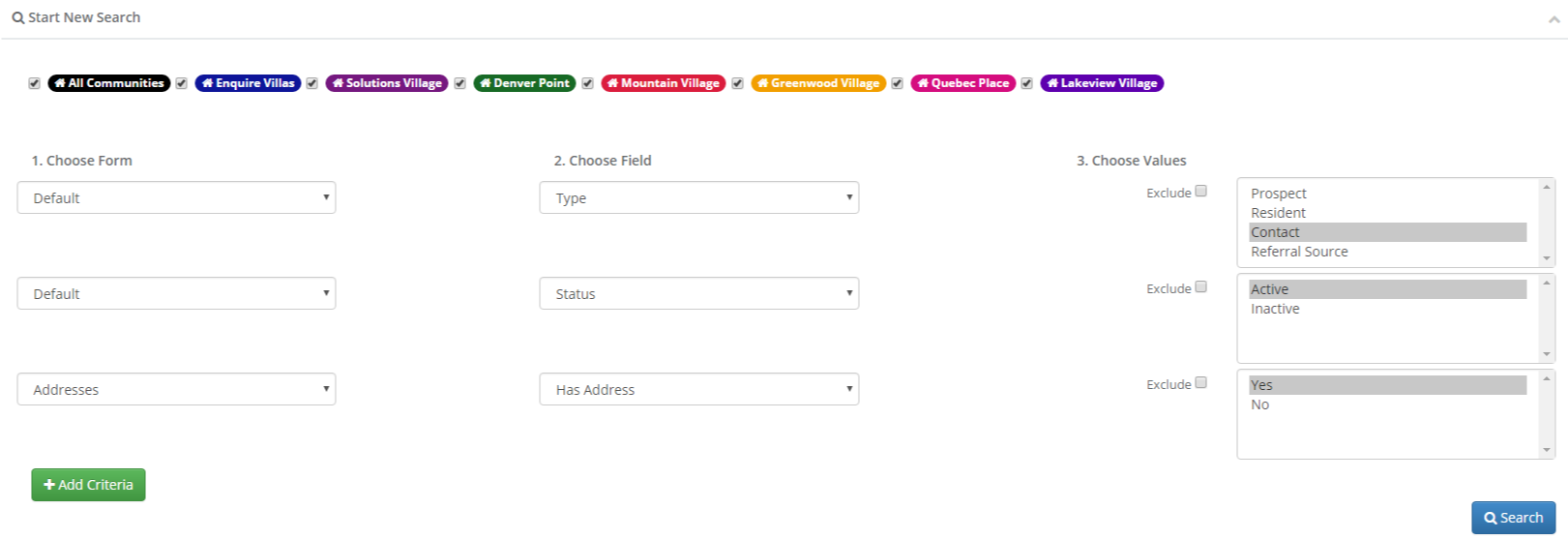
Step 2: Now we will need to create another list that will look for all active Contacts that have an address. Please take a look at the screenshot below for an example of this list. We will also want to save this as a new list.
Step 3: Now that we have the two lists we want to compare, lets pull the list we want to search within. In this example, that list will be the prospect list we created first. Then we will use the Advanced Options button to select the second list we want to use to look into our prospect list. Take a look at the screenshot below for an example of what this would look like.

Step 4: Click Show Results!
Step 5: You can now use the Save List button to save this as its own list or use the Export button to export the results to an Excel document.
Additional Articles
Check out our additional articles that cover the advanced search section!
Was this article helpful?
That’s Great!
Thank you for your feedback
Sorry! We couldn't be helpful
Thank you for your feedback
Feedback sent
We appreciate your effort and will try to fix the article