Overview
Goals allow you to set objectives for your community and individual users. Goals are tracked based on Activities and Performance goals and can be used to help gauge how your users and communities are doing via the Sales & Marketing Analytics report.
Setup Activity Goals
Activity goals are set for each activity type your company has set up. The activity goals table will display the total for each Activity Master Type with the option to expand each master type and view the underlying activities, giving you the ability to track goals with more detail. Goals can be uploaded using our Goals Template.
Step 1: Click Admin on the left menu.
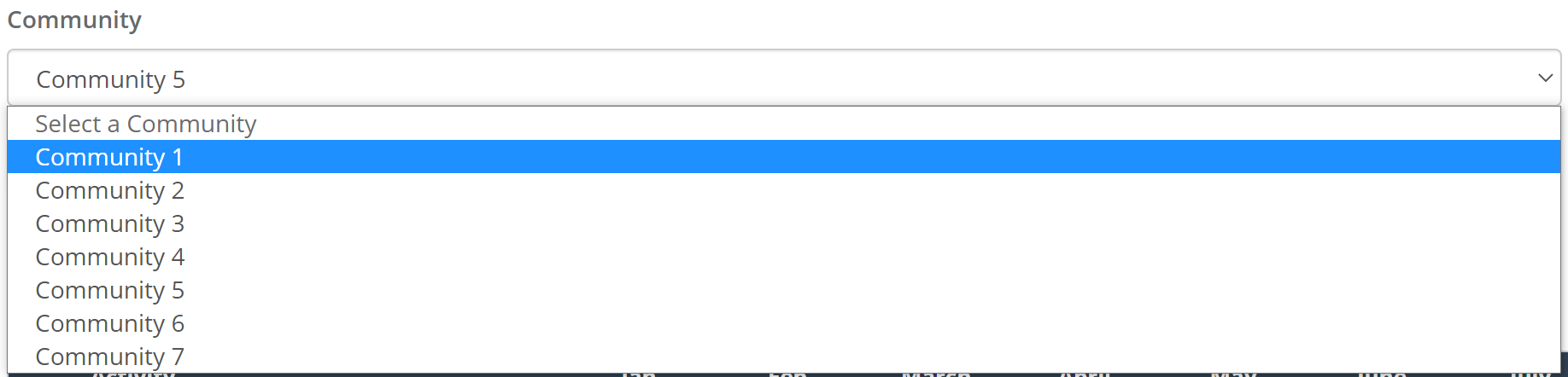
Step 2: Click Goals on the left Admin menu. Step 3: Choose a community from the community drop down.
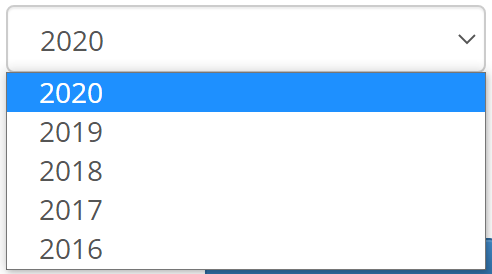
 Step 4: In the top right of the goals page, a drop down will allow you to choose the year you would like to set goals for.
 Step 5: Click the edit button to the left of an Activity Master Type to expand and see its underlying activity types.
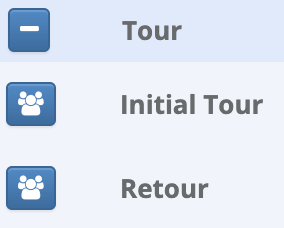 Step 6: Enter your goal value for each activity type. As you enter each value for a goal, that value will be event distributed to each user with access to that location (excluding admins). You can view the user distribution by clicking the people icon to left of each activity type.
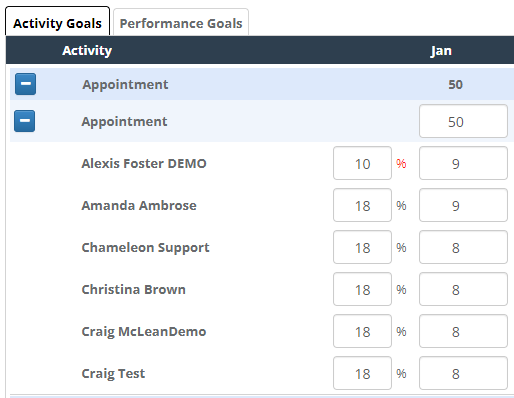
Note: When entering in goals there is a percentage section that allows you to allocate the percentage of the total number to each user. The system will adjust automatically to make sure the total outcome is 100%. For example, if we created a goal for 50 Appointments across 6 users and we manually updated that one user needs to complete 10% of this goal, the system will adjust the others to reflect the total number added for the Appointments. The red % means this was a manual change.
Setup Performance Goals
Performance goals can be tracked at a community level as well as per user. Performance goals come pre-setup with some common metrics like occupancy and conversions, but custom performance goals can be created to help your team better track other metrics.
Step 1: Just above the goals table, click the tab labeled Performance Goals. Step 2: Enter your goal value for each performance goal. As you enter each value for a goal, that value will be event distributed to each user with access to that location (excluding admins). You can view the user distribution by clicking the people icon to left of each performance goal.
Things to Note
- Goals do not allow for decimal values. All values must be entered as a whole number.
- Goals are automatically saved as you tab or click into the field for the next month.
- To see and track goals for a user, that user must be Web Active, not locked out, have access to the desired Community, and have a role other than Admin.
Was this article helpful?
That’s Great!
Thank you for your feedback
Sorry! We couldn't be helpful
Thank you for your feedback
Feedback sent
We appreciate your effort and will try to fix the article